I run three RTSP cameras at home. Frigate records them, and that is the right tool for footage. But I wanted a window that shows all three live, on the desktop. I leave it open on a second display, and I didn’t want another browser tab for it.
CamViewer is that window. It is a native desktop app in Rust, built with GPUI and the GPUI Kit components. It comes as one binary per platform for Linux, macOS, and Windows, and it needs only ffmpeg on PATH.
Version 0.4.4 is the current release.
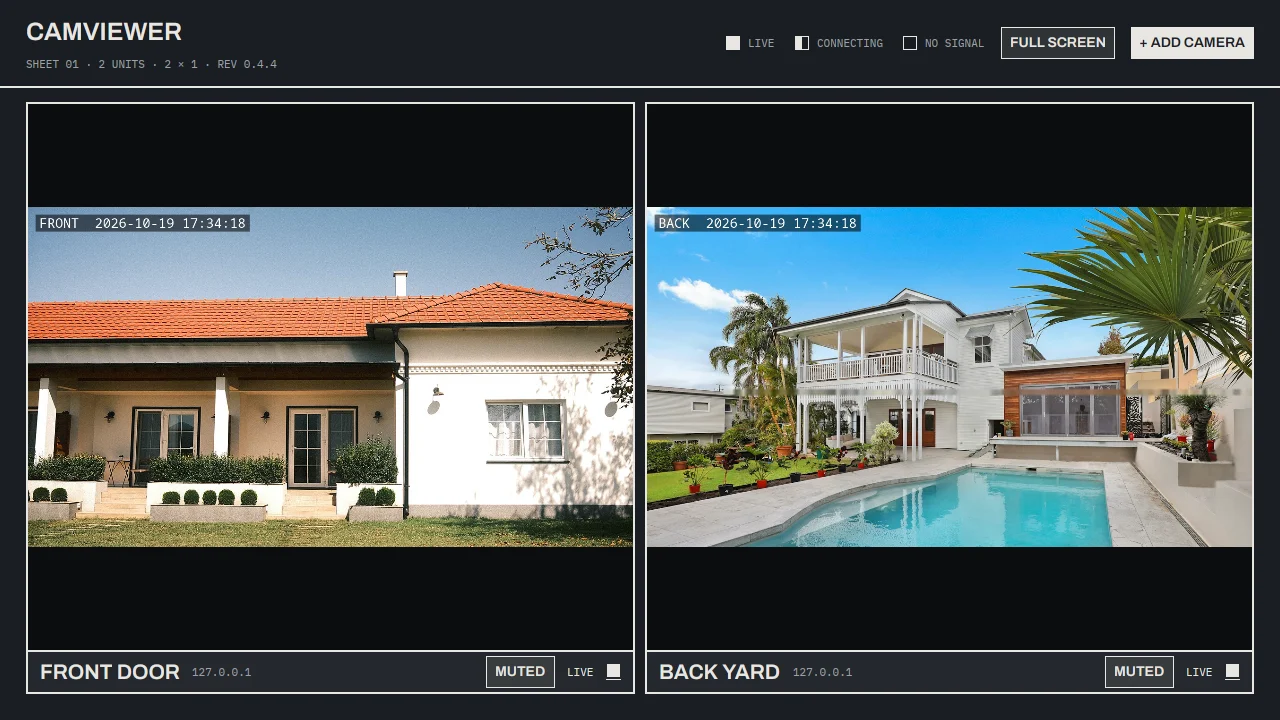
CamViewer 0.4.4 with two synthetic camera views. House photo: Shixart1985, CC BY 2.0. Pool photo: Unsplash.
What it does
- Add a camera by RTSP URL. The list is one JSON file and loads at startup.
- The wall fills the window with the squarest grid that holds every camera.
- The wall draws the low-resolution stream. Click a tile to enlarge it and switch to the full-resolution stream.
- Going back to the wall switches to low resolution at once. The full-resolution connection stays for 30 seconds, so a second look is instant.
- Sound comes from one camera at a time.
- Full screen, for a wall on a second display.
- The app updates itself from GitHub releases.
One camera, one connection
The camera is the hard limit here, not the GPU.
Many cameras allow only two or three RTSP sessions. Frigate already holds some of them. A second ffmpeg process for sound is often refused, and the failure is silent. The picture works, and the sound does not. That one took a while to notice.
So each camera gets one ffmpeg child process and one RTSP session. The process writes video to stdout and raw PCM audio to a loopback TCP socket. The app reads the picture from the pipe and the sound from the socket.
Two details matter. The socket is read all the time, even when the camera is muted. If nothing reads it, ffmpeg blocks and the picture stops. And a camera with no audio track makes ffmpeg reject the audio output. The app drops that output once and reconnects.
The 30-second grace opens a second connection when you enlarge a camera. That is deliberate: one connection at rest, and two while a camera is enlarged and for 30 seconds after.
A dead camera must not look live
A camera can stop while the connection stays up. A frozen picture looks live. That’s the worst failure for a camera wall.
Every camera carries a state word: Live, Connecting, Frozen, or No signal. A camera that is connected but sends no frame for three seconds becomes Frozen. The frame rate reads 0.0 FPS at the same time. A camera that cannot be reached says why: Address not found, Password refused, Session refused, Timed out, Host unreachable.
The app doesn’t hide a fault behind a blank tile. Only a unit with a fault uses the sheet’s blue, so you can see which camera is wrong without a hover.
Latency, measured
These cameras print their own clock into the picture. That makes latency measurable. packaging/measure-latency.sh runs the app offscreen next to a bare ffmpeg reading the same camera. tesseract reads the clock in both pictures. The script reports the difference.
-threads 1 puts the app 0.22 seconds closer to live than the default. That is measured over 25 samples. -avioflags direct -max_delay 0 -reorder_queue_size 0 removed that gain, so they are not used. -rtsp_transport udp did not help.
The app adds no measurable delay over a bare ffmpeg pipeline. What is left is the camera and the network.
The next bug was in the window. The wall asked for a new picture every 33 ms. A 25 fps camera sends one every 40 ms. Every fifth picture waited 66 ms, and the wall stuttered. The fix was a 5 ms poll. The decoder also passes every picture through in order (-fps_mode passthrough). Re-timing to the nominal rate held some pictures and dropped others.
The wall keeps only the newest frame. A slow repaint drops frames instead of queueing them. The app releases a replaced frame one tick later, because the GPU reads an image while it is drawn.
The sheet
Most camera walls look like a dark dashboard. I wanted something else: one drawing sheet, ruled in graphite, with one numbered unit per camera. The layout is a rack elevation on vellum.
I kept the sheet flat. It has square corners and no shadows. Uppercase Archivo for the app’s voice and IBM Plex Mono for anything measured or stated as a state. The picture field stays dark, so a camera is judged against the same ground at any hour.
The sheet follows the system’s light or dark appearance. The dark sheet is the same drawing on dark paper, not an inverted one.
A drawing makes an abnormal unit visible without a hover. The title block is the only fixed furniture. The wall lays out around it. It carries the count and grid, and each unit carries the camera’s name, address, and state.
Tests that look at the picture
The layout and stream choice are pure functions, so most tests need no window and no camera. cargo test covers the grid, the tile box, the feed choice, and the config file.
tests/ui.rs drives the real view in a headless window. Six tests click real elements: the add dialog opens and closes, a tile click enlarges its camera, the picture returns to the wall, the enlarged picture fills the window, the speaker toggles one camera at a time, and the bin removes a camera.
packaging/e2e.sh runs the real binary against a real RTSP stream. It starts mediamtx, publishes a test pattern with ffmpeg, runs the app under cage, and looks at the screenshots with grim. Five checks: the wall draws and reads sound, --version exits, a silent stream draws, the picture returns after a drop, and an unreachable camera is reported.
One screenshot cannot tell a live picture from a frozen one. The test takes two shots a few seconds apart. The test pattern moves, so the two shots must differ.
The test can fail: with nothing published, the script must fail. If E2E_BREAK=1 ./packaging/e2e.sh passes, the test is broken.
These checks caught a cropped picture, a silent sound path, and a wrong assertion of mine. The cropped picture was easy to miss in the code. The test found it in a screenshot.
Shipping
CI builds four assets: Linux x86_64, macOS Apple silicon, macOS Intel, and Windows x86_64. The release workflow takes the notes from CHANGELOG.md. A tag without notes fails the build. The app shows the same notes once after an update.
The app checks GitHub every six hours. A failed check is retried after ten minutes. It downloads nothing until you choose Install and restart. Then it replaces its own executable and restarts.
That is why packaging/install.sh puts the binary in ~/.local/bin. An app that updates itself needs a location the user can write.
What it does not do
- No recording, playback, events, or motion detection. Frigate does that.
- No ONVIF discovery. You paste the RTSP URL.
- No account, cloud, or server.
- Enlarging a camera reconnects, about one second, unless you looked at it in the last 30 seconds.
- The mute and remove buttons answer the mouse only.
- The builds are not code signed. macOS needs
xattr -d com.apple.quarantine; Windows shows a SmartScreen warning. - Video goes through GPUI as one image per frame. It is not a video pipeline. It works for a few cameras.
ffmpegmust be onPATH.
Cameras keep their passwords in the RTSP URL, so cameras.json holds them in plain text. Protect the file with normal user permissions.
Try it
Releases are at github.com/peyloride/camviewer/releases. The source is at github.com/peyloride/camviewer. The licence is MIT.
If you run RTSP cameras and a desktop, try it. Tell me what breaks.